
Intro
RenderFlex overflowed. As a Flutter developer you have probably seen this error a
million times. You put together some widgets to make a beautiful UI and it works
perfectly. Until someone runs it on a different device, with a different screen
or font size now your text is overflowing, widgets are overlapping and that
beautiful UI is gone.
Often times we build UIs that work for ideal situations, however, the apps we make run in the most unexpected conditions and we must be able to take those situations into account. Our app UIs must be built to withstand as many edge cases as possible, the different screen and font sizes, languages and even orientations. However, catching these edge cases is hard, especially for UIs, not withstanding the fact that edge case testing can be time consuming.
To find edge cases, you need to spend time and play around with your app. It is through playing that we learn the most about whats possible, impossible and further what breaks our app UIs.
Testing on the Edge
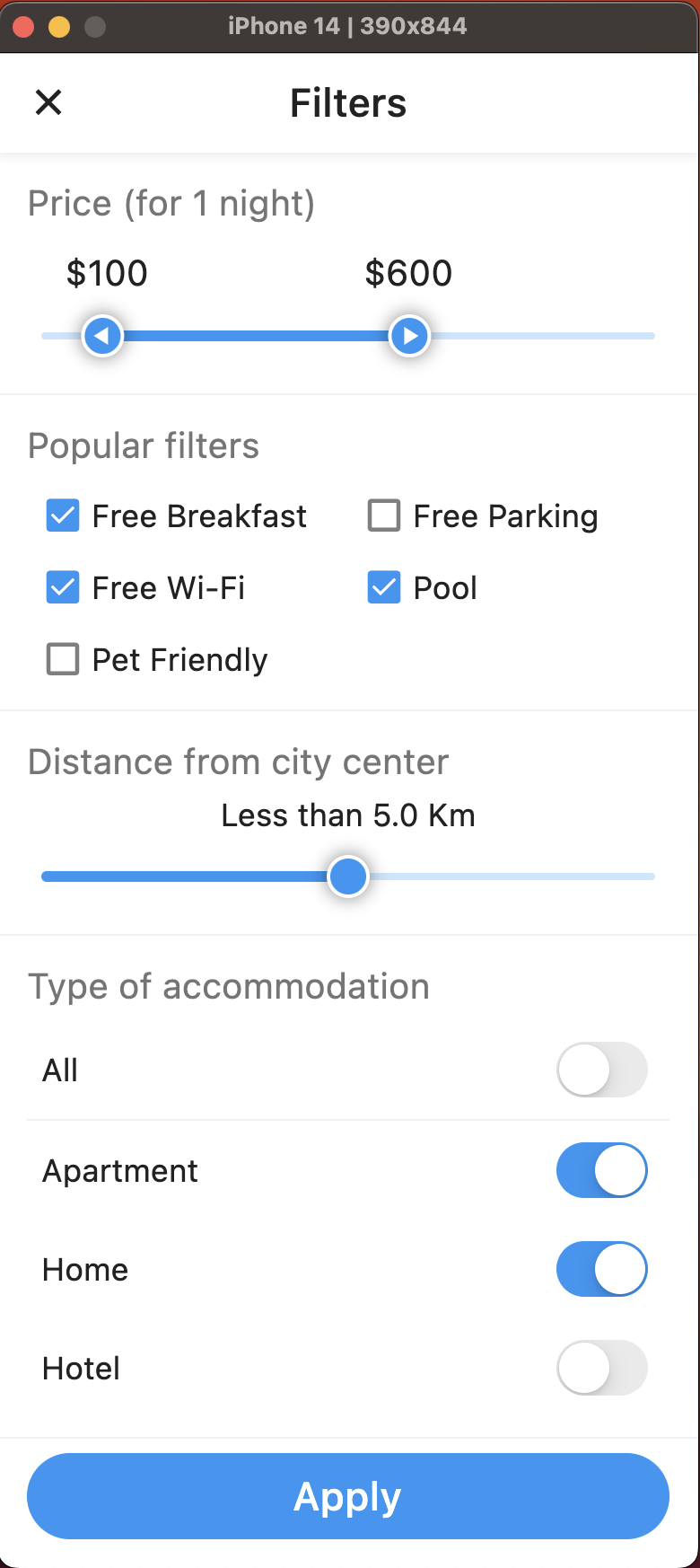
Edge cases occur at the extremes of your app's functionality. They often hide subtle bugs that can wreak your users' experience. Using the below screen that shows a set of filtering options, let's play around with the device and text sizes and try to catch some bugs in the related edge cases.
1. Preview on the Smallest Device
Previewing the screen on the smallest device our app supports helps us identify issues related to layout, cramped visuals, and overflowing content.
2. Preview on the Largest Device
Next, we'll preview the same screen on the largest device our app supports. This test ensures your app scales gracefully and doesn't break when elements are stretched.
3. Small Text Scale Factor
Now, let's change the text scale factor to its smallest value. This might trigger issues like unreadable content, accessibility, or overlapping elements.
4. Large Text Scale Factor
Here, we'll increase the text scale factor to its maximum value. Observe how the UI handles this extreme situation. Problems related to text wrapping, oversized text, or misaligned elements may surface.
Here's a video showing the edge case test with Monarch in action
Why you should isolate your widgets
- Isolation gives you more control of the parts of your UI that you can play around with and apply edge cases. When you isolate, you can test your edge cases on the entire screen, just a section, or down to a single widget like a textview or a button. With this level of control, you can test more edge cases and debug more efficiently.
- Isolation allows you to test parts of your UI flow without dealing with the related business logic, backend, or navigation to access it. For instance, in a 3-step login flow, all you'll need to do to access the third step of the flow is to write a story for it, and that's it; you have direct access to that screen.
- When you isolate your widgets and use Monarch to preview them, you get more options to test edge cases related to themes, internationalization, and device type and size. All with little to no hassle.
- Isolating your widgets also makes it much easier to reproduce edge case scenarios.
Automating Edge Case Testing with Monarch
As we advance, we plan to automate edge case testing. Imagine a world where Monarch automatically previews stories at various edge cases and reports any errors directly to you. This approach will save time, enhance your app's reliability, and elevate user satisfaction.
In conclusion, edge case testing is not just an optional step in development; it's a crucial aspect of building robust and reliable Flutter apps. Monarch, with its ability to facilitate comprehensive edge case testing, empowers you to deliver a flawless user experience.