
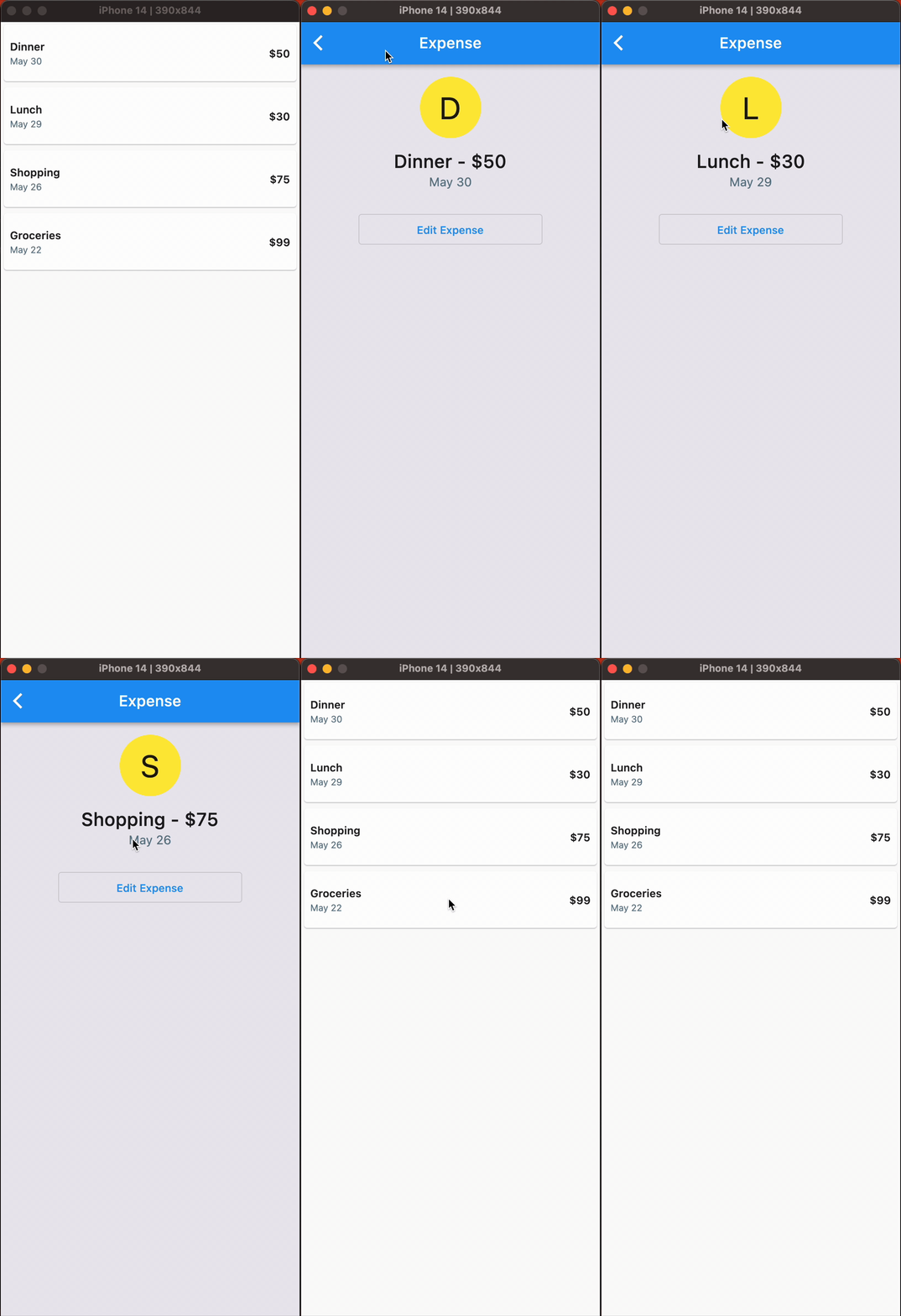
When building apps with multiple screens, it is essential to make the transitions between them appear seamless rather than abrupt. To achieve that, standard practice is to use transition animations(e.g., fade in, slide in, etc.) when navigating between screens. However, testing and tweaking these interactions within your full app is time consuming. Let's explore why isolating these transitions is good for you.
Why you should isolate your page transitions
By isolating your interactions, you can easily play around with different animated transitions by changing their durations, behavior, and patterns until you find the one that works best for your app without changing your main codebase. A great custom transition can make your app stand out and more unique.
More importantly, isolating interactions enables you to test them independently without relying on the rest of your app or backend data. Like in most apps, the screens in your app often depend on preceding states or backend data. As a result, it necessitates navigating through multiple screens each time you want to test an interaction, making the process such a hassle and time-consuming. By isolating interactions, you can directly access and play around with your interactions without having to navigate through numerous screens or fulfill business logic every time.
Writing stories for interactions
To demonstrate how isolation makes your work as a developer easier, let's write some stories for the ExpenseListWidget shown
at the top of the page that transitions into a Details Screen. Using the stories and Monarch, we will play around with our
interaction by changing some variables to find an animation we like.
First, let's set up the ExpenseListWidget. It exposes a transitionBuilder callback whose return value we can change around to
get various animations.
class ExpenseListWidget extends StatelessWidget {
final List<Expense> expenses;
final RouteTransitionsBuilder transitionBuilder;
const ExpenseListWidget({
super.key,
required this.expenses,
required this.transitionBuilder,
});
Widget build(BuildContext context) {
return ListView.builder(
itemCount: expenses.length,
itemBuilder: (BuildContext context, int index) {
var expense = expenses[index];
return GestureDetector(
child: ExpenseCard(
expense: expense,
),
onTap: () {
PageRouteBuilder pageRoute = PageRouteBuilder(
pageBuilder: (context, animation, secondaryAnimation) =>
DetailsScreen(expense: expense),
transitionsBuilder: transitionBuilder,
);
Navigator.of(context).push(
pageRoute,
);
},
);
});
}
}
No Transition
Our first story will test what the interaction is like without an animated transition. To do that, our story will pass to the
ExpenseListWidget a TransitionBuilder callback that simply returns the child parameter without any animations applied to it.
Widget noTransition() => ExpenseListWidget(
    expenses: expenses,
    transitionBuilder: (context, animation, secondaryAnimation, child) {
      return child;
    });
Bottom-Up Slide Transition
Next, let's try a transition that slides in the next page from the bottom. To do that, we'll change the TransitionBuilder
callback to return a SlideTransition animated widget that takes the child parameter and an offset animation with begin and end
offsets set to Offset(0.0, 1.0) and Offset.zero, respectively, like below:
Widget bottomUpTransition() => ExpenseListWidget(
      expenses: expenses,
      transitionBuilder: (context, animation, secondaryAnimation, child) {
        final tween = Tween(begin: const Offset(0.0, 1.0), end: Offset.zero);
        Animation<Offset> offsetAnimation = animation.drive(tween);

        return SlideTransition(position: offsetAnimation, child: child);
      },
    );
Right-to-Left Slide Transition
Finally, to try out a right-to-left slide transition, we’ll have a callback similar to the previous one, except in this, the begin
offset value in the Tween is set to Offset(1.0,0.0) like below:
Widget rightToLeftTransition() => ExpenseListWidget(
      expenses: expenses,
      transitionBuilder: (context, animation, secondaryAnimation, child) {
        final tween = Tween(begin: const Offset(1.0, 0.0), end: Offset.zero);
        Animation<Offset> offsetAnimation = animation.drive(tween);

        return SlideTransition(position: offsetAnimation, child: child);
      },
    );
Preview your stories in Monarch
After executing monarch run in the terminal, we can now click through each story to see each transition behaves and pick the one we like as below:
Breaking down your transitions into stories opens up the opportunity to do more with your transitions beyond what's been demonstrated
in the stories above. For instance, you can also play around with the animation
curve, which alters how transitions roll in and/or out. Among other
Curves, you can play around with Curves.ease, Curves.easeIn or Curves.easeInOut, and find what works best for your app.
Why Monarch
- Monarch lets you easily play with your transitions, and with all of your UI, which makes you more productive.
- Directly reach the widgets and interactions you want to test without having to navigate through multiple screens.
- With monarch, you can visually debug your page transitions via the “slow animations” flag
- Monarch gives your UI the best isolation possible which enables to test full screen interactions like page transitions. Other tools can’t do this.
Your job as a Flutter developer is hard. Isolate your UI and use Monarch to make your job easier. Use Monarch to prototype, build, and test your UI. Use Monarch to play with your UI, to feel productive, creative, and satisfied. This is what we like to call The Monarch Way.
--
The complete code is available here.